TABLE OF CONTENTS
- Participant Portal
- Enriched webhook notifications
- Advanced Filter for Data Offerings with Non-Destructive Testing Files
- Access transactions related to a data offering from the publication page
- Spot at a glance the data offerings already acquired
- Submitting a data offering by file: a unified status column
- Select the number of results to display in the tables
- Duplicating the signature block of distribution conditions
- Hide a group’s member count and organizations
Participant Portal
Enriched webhook notifications
Directly identify the data offering involved in the transaction
The Acquirer transaction initiated and Acquirer transaction validated events now include the offering ID in their payload. This allows you to directly identify the data offering involved in the transaction without needing to make an additional request.
Two new file events for data providers
File added to the offering
File removed from the offering
These events allow data providers to track when a file is added to or removed from a data offering. They are grouped in the Data Offering section of the event selector.
Advanced Filter for Data Offerings with Non-Destructive Testing Files
Data acquirer can refine their search for data offerings using advanced filters related to non-destructive testing files:
Part geometry: flat, cylindrical, port, weld, 2D CAD, 3D CAD, etc.
File size: minimum and maximum values
Experimental data: yes / no
Annotated data: yes / no
Inspection method: ultrasonic (US), optical (OG), chemical (CF), radiographic (RX), structural health monitoring (SHM), thermography, etc.
Access transactions related to a data offering from the publication page
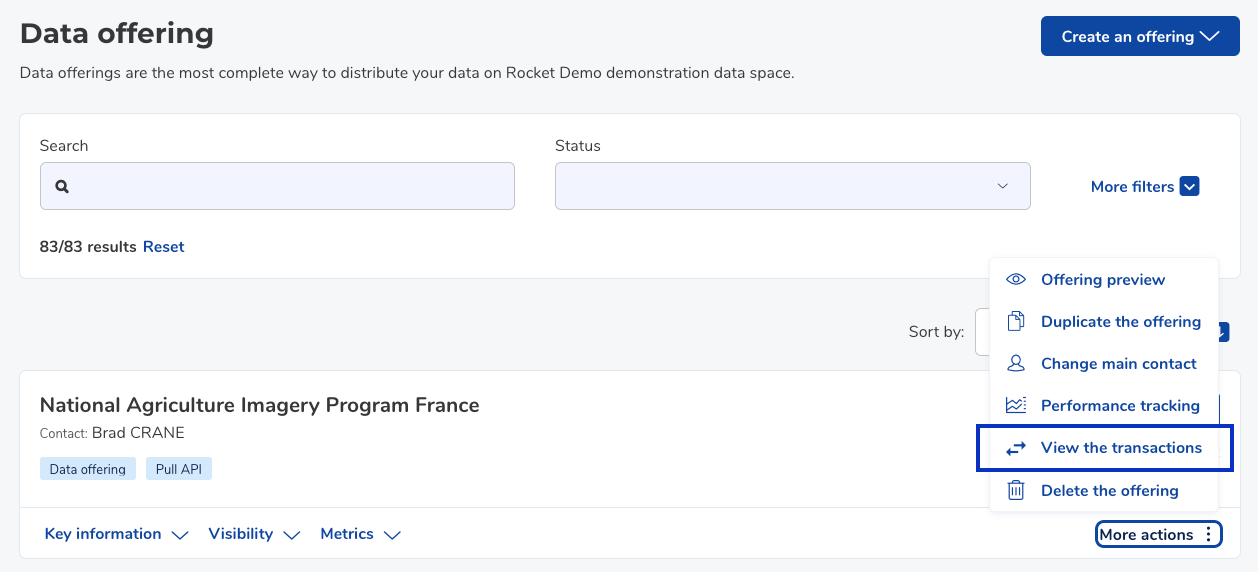
In the list of data offerings in the Publication universe, the “More actions” menu on each data offering tile now includes a “View the transactions” button that redirects you to the table of transactions related to the selected data offering.
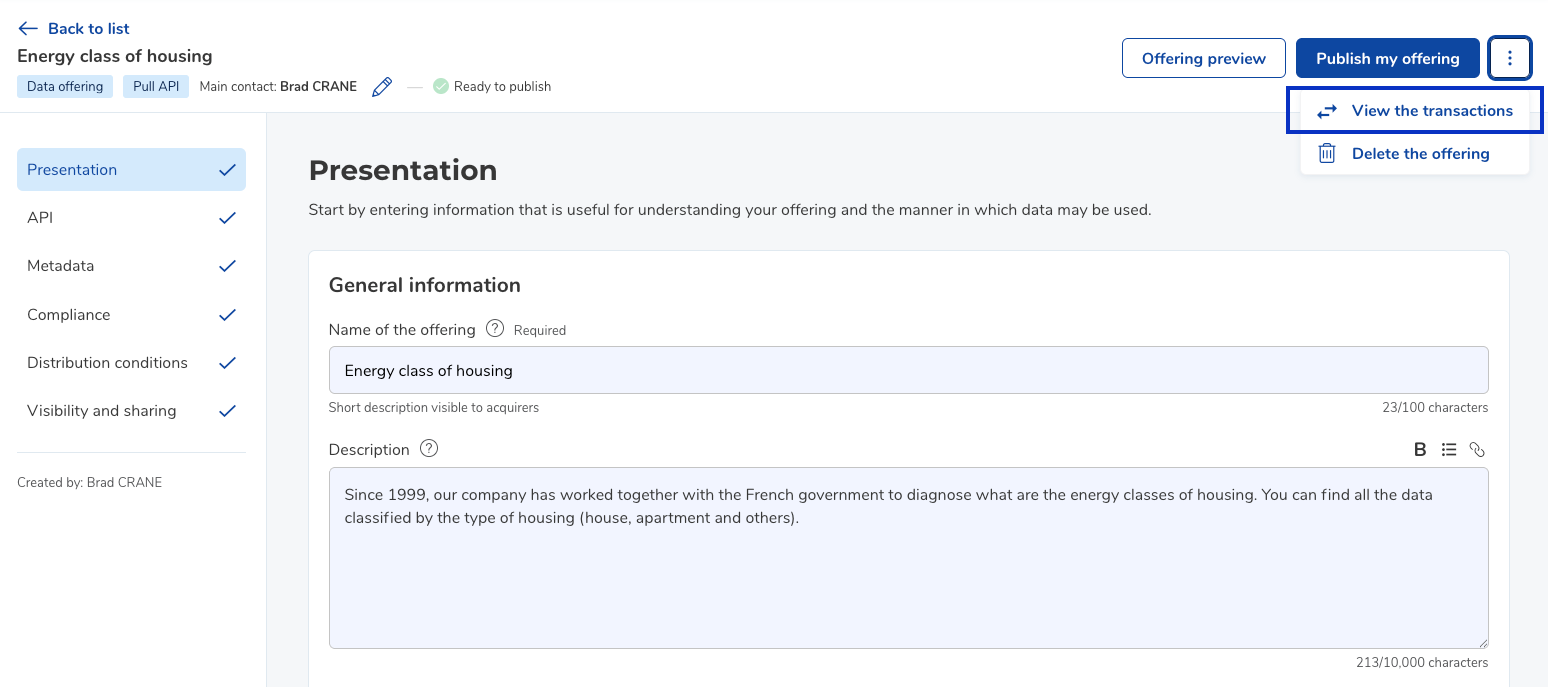
This quick access is also available from the data offering submission page.
Spot at a glance the data offerings already acquired
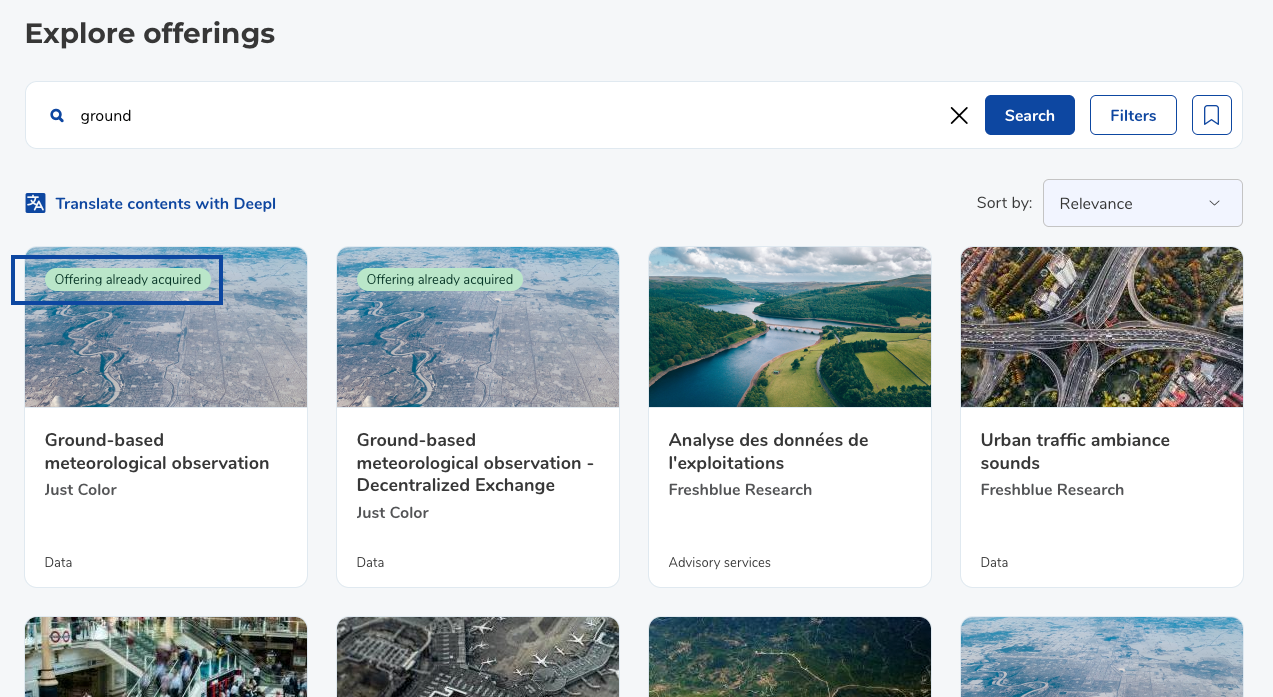
In the search results, an “Offering already acquired” label appears on all data offering tiles that have been acquired, whether by the user or by the user’s organization.
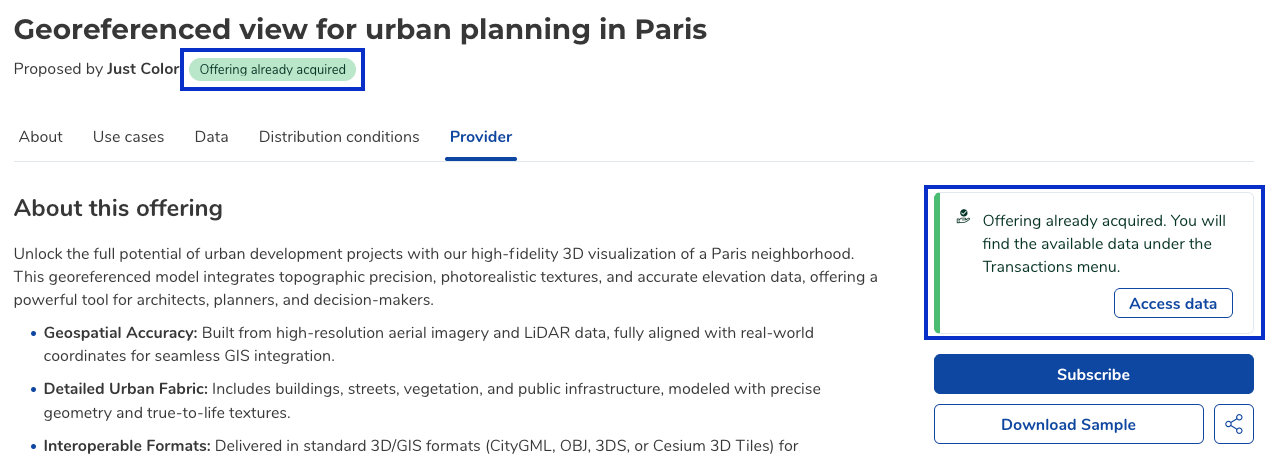
On an data offering detail page, the same label appears in the header as soon as a subscription is:
active,
has expired,
or files have been acquired.
A panel on the right side of the offering page provides direct access to data that has already been acquired.
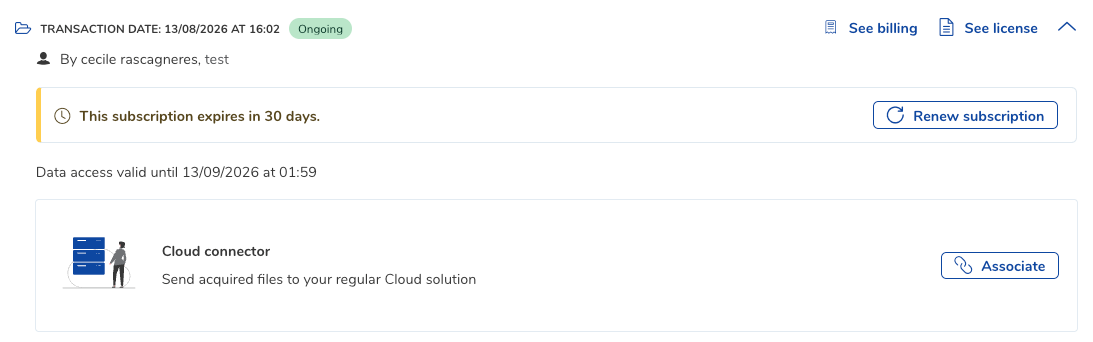
For subscription-based data offerings, a button appears on the data offering page and on the transaction page 30 days before expiration, inviting the user to renew its subscription to keep receiving the data.
Submitting a data offering by file: a unified status column
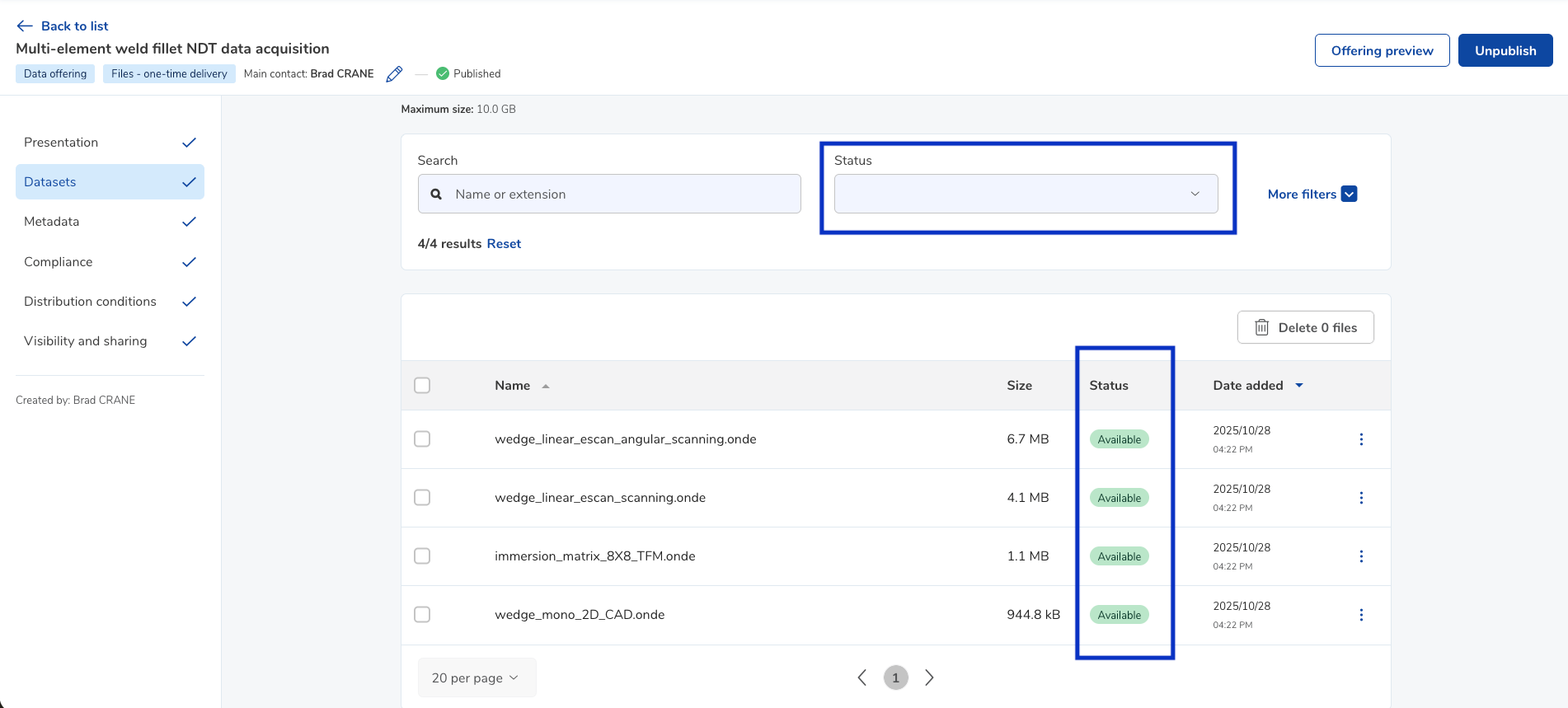
In the Datasets section when editing a data offering by file, the Diagnostic and Status columns are merged into a single column: Status.
Each file is associated with a status, shown as a label. The status are:
Pending analysis,
Analysis in progress,
With error,
Duplicate detected,
Available,
Expired.
The Status filter allows you to filter by these values.
Select the number of results to display in the tables
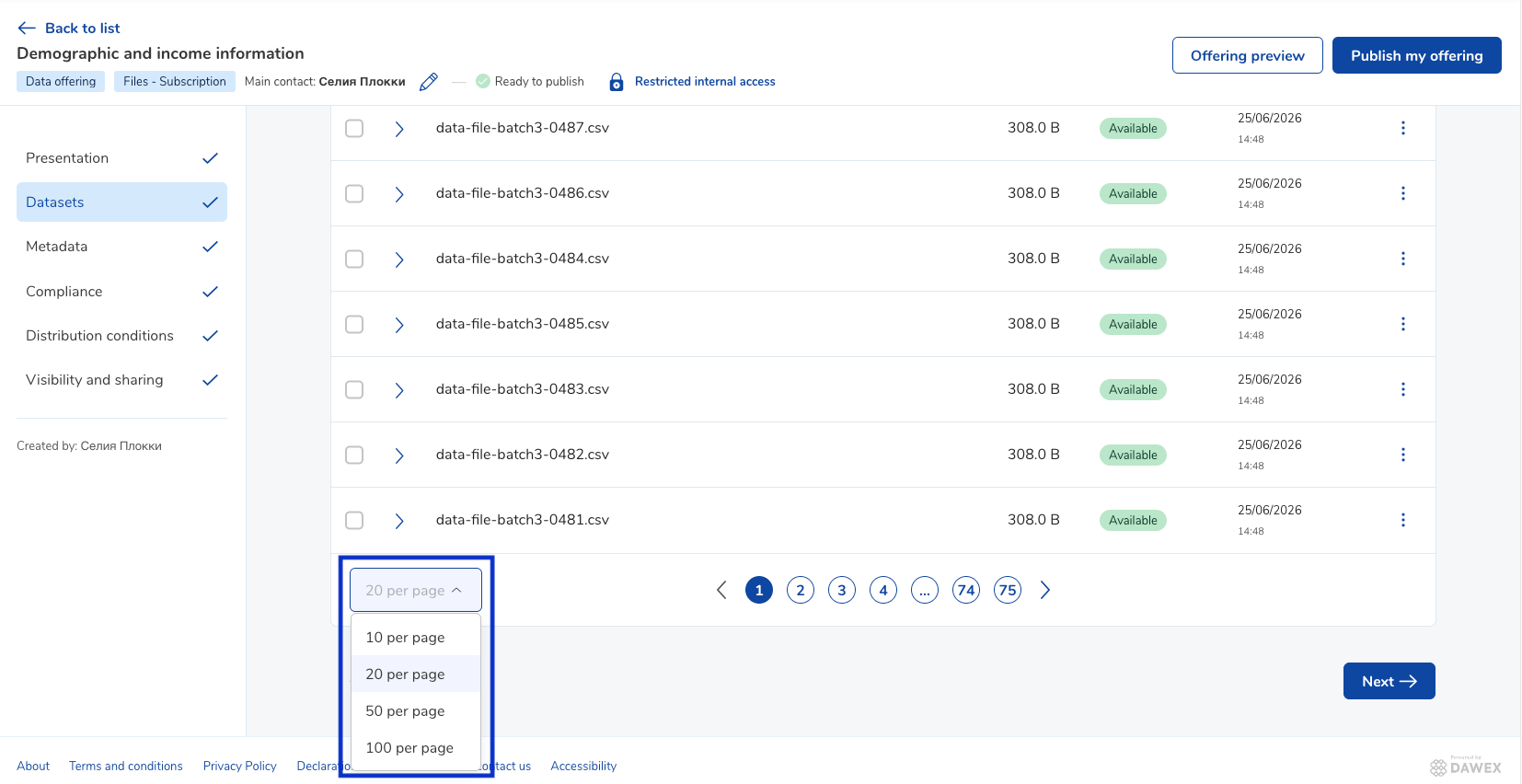
A selector for the number of results per page is available in the lower-left corner of all tables on the Participant Portal.
Duplicating the signature block of distribution conditions
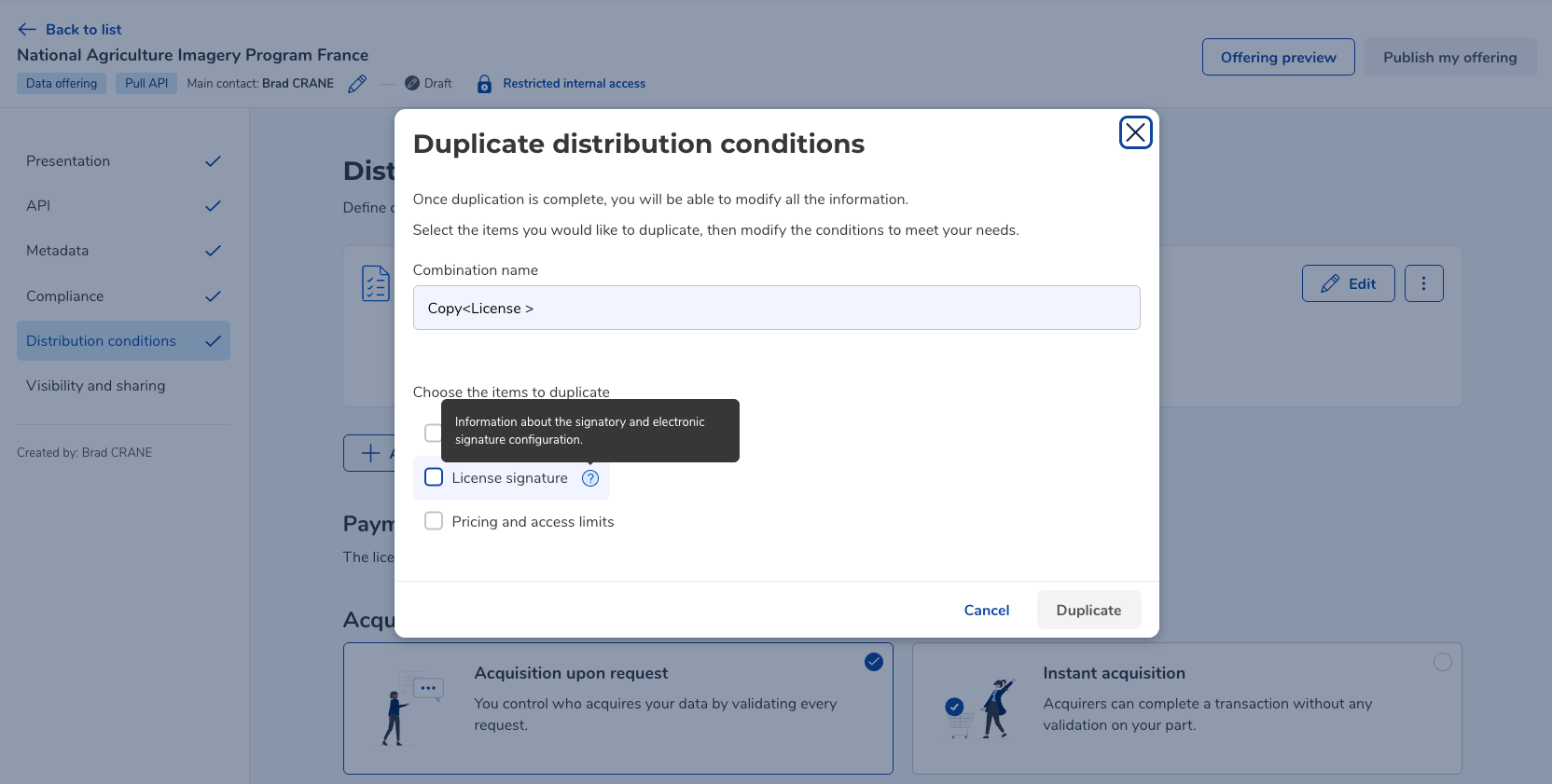
In the “Distribution Conditions” step when editing a data offering, when duplicating a distribution condition, a new “License Signature” checkbox allows you to choose whether the signature block (signatory, electronic signature, and approvers) is included in the copy.
If the box is left unchecked, the copy starts with a blank signature block.

Hide a group’s member count and organizations
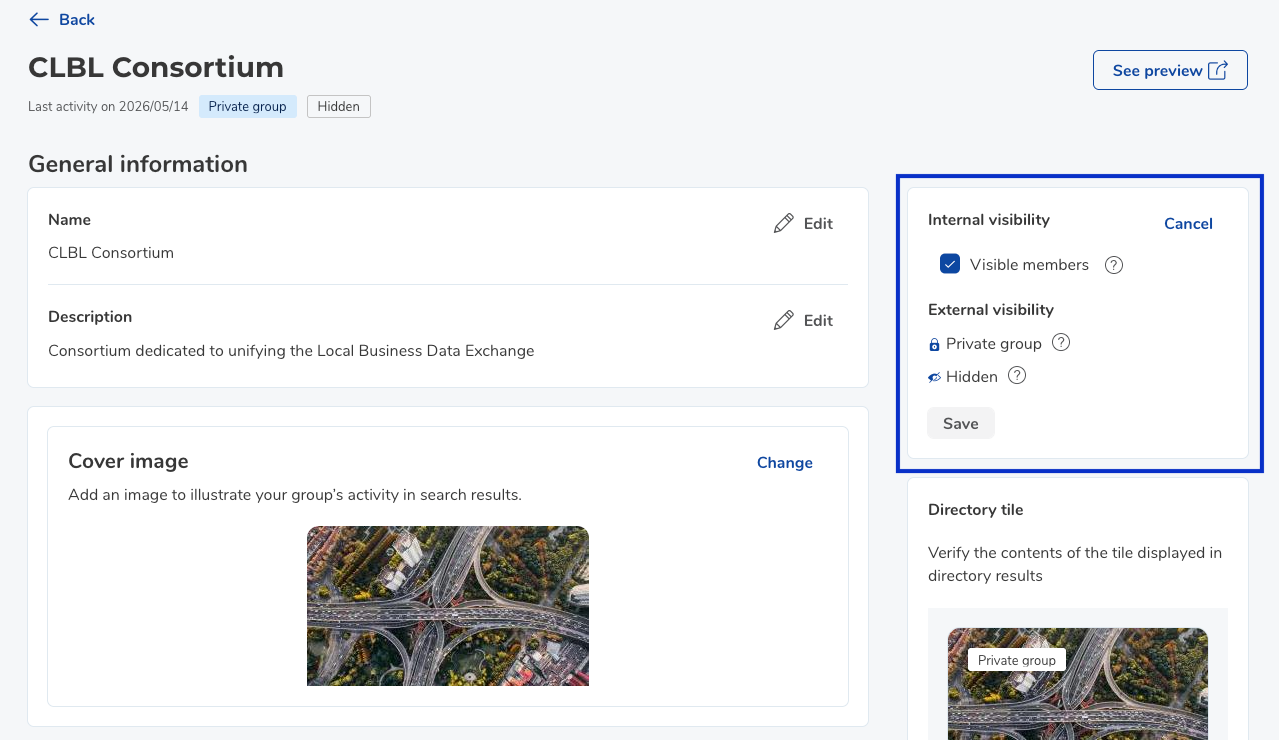
Group administrators can hide a group’s information from other members via the “Visibility” section of the group administration. A “Visible members” checkbox lets you turn the display of the member count and the list of organizations on or off.
When the option is turned off:
The member count is no longer shown on the group’s page or on group tiles,
The list of organizations is no longer visible on the group’s page.
Was this article helpful?
That’s Great!
Thank you for your feedback
Sorry! We couldn't be helpful
Thank you for your feedback
Feedback sent
We appreciate your effort and will try to fix the article